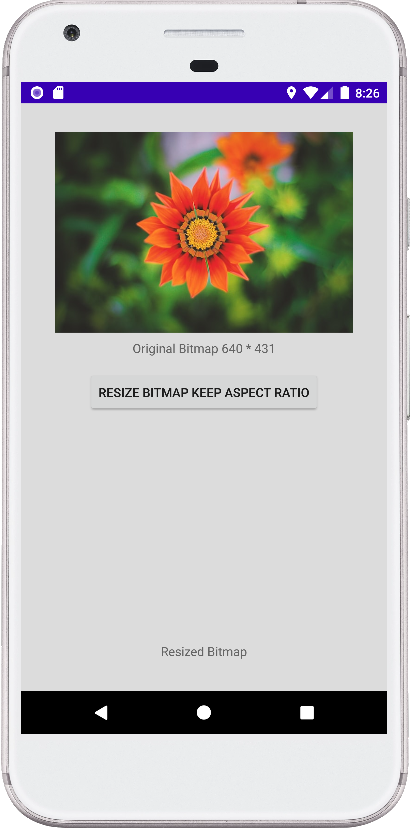
MainActivity.kt
package com.cfsuman.kotlintutorials

import android.app.Activity
import android.content.Context
import android.graphics.*
import android.os.Bundle
import android.widget.*
import java.io.IOException
import kotlin.math.roundToInt

class MainActivity : Activity() {
    override fun onCreate(savedInstanceState: Bundle?) {
        super.onCreate(savedInstanceState)
        setContentView(R.layout.activity_main)

        // get the widgets reference from XML layout
        val imageView = findViewById<ImageView>(R.id.imageView)
        val imageView2 = findViewById<ImageView>(R.id.imageView2)
        val button = findViewById<Button>(R.id.button)
        val textView = findViewById<TextView>(R.id.textView)
        val textView2 = findViewById<TextView>(R.id.textView2)


        // get the bitmap from assets folder
        val bitmap = assetsToBitmap("flower103.jpg")


        // If bitmap is not null
        bitmap?.let {
            imageView.setImageBitmap(bitmap)

            // Display the original bitmap width and height
            textView.text = "Original Bitmap ${bitmap.width}" +
                    " * ${bitmap.height}"
        }


        // Click listener for button widget
        button.setOnClickListener{
            // disable the button itself
            it.isEnabled = false

            if(bitmap!=null){
                // Resize the bitmap by keeping aspect ration
                val resizedBitmap = bitmap.resizeByWidth(900)
                //val resizedBitmap = bitmap.resizeByHeight(400)

                // Display the resized bitmap into image view
                imageView2.setImageBitmap(resizedBitmap)

                // Display the resized bitmap width and height
                textView2.text = "Resized Bitmap ${resizedBitmap.width}" +
                        " * ${resizedBitmap.height}"

                // Show a toast message
                toast("Bitmap resized.")
            }else{
                toast("bitmap not found.")
            }
        }
    }


    // Method to get a bitmap from assets
    private fun assetsToBitmap(fileName:String):Bitmap?{
        return try{
            val stream = assets.open(fileName)
            BitmapFactory.decodeStream(stream)
        }catch (e:IOException){
            e.printStackTrace()
            null
        }
    }
}


// Extension function to resize bitmap using
// new width value by keeping aspect ratio
fun Bitmap.resizeByWidth(width:Int):Bitmap{
    val ratio:Float = this.width.toFloat() / this.height.toFloat()
    val height:Int = (width / ratio).roundToInt()

    return Bitmap.createScaledBitmap(
        this,
        width,
        height,
        false
    )
}


// Extension function to resize bitmap using
// new height value by keeping aspect ratio
fun Bitmap.resizeByHeight(height:Int):Bitmap{
    val ratio:Float = this.height.toFloat() / this.width.toFloat()
    val width:Int = (height / ratio).roundToInt()

    return Bitmap.createScaledBitmap(
        this,
        width,
        height,
        false
    )
}


// Extension function to show toast message
fun Context.toast(message: String) {
    Toast.makeText(this, message, Toast.LENGTH_SHORT).show()
}
activity_main.xml
<?xml version="1.0" encoding="utf-8"?>
<androidx.constraintlayout.widget.ConstraintLayout
    xmlns:android="http://schemas.android.com/apk/res/android"
    xmlns:app="http://schemas.android.com/apk/res-auto"
    xmlns:tools="http://schemas.android.com/tools"
    android:layout_width="match_parent"
    android:layout_height="match_parent"
    android:id="@+id/rootLayout"
    android:background="#DCDCDC"
    android:padding="24dp">

    <ImageView
        android:id="@+id/imageView"
        android:layout_width="0dp"
        android:layout_height="225dp"
        android:layout_marginTop="8dp"
        app:layout_constraintEnd_toEndOf="parent"
        app:layout_constraintStart_toStartOf="parent"
        app:layout_constraintTop_toTopOf="parent" />

    <TextView
        android:id="@+id/textView"
        android:layout_width="wrap_content"
        android:layout_height="wrap_content"
        android:layout_marginTop="8dp"
        android:text="Original Bitmap"
        app:layout_constraintEnd_toEndOf="parent"
        app:layout_constraintStart_toStartOf="@+id/imageView"
        app:layout_constraintTop_toBottomOf="@+id/imageView" />

    <Button
        android:id="@+id/button"
        android:layout_width="wrap_content"
        android:layout_height="wrap_content"
        android:layout_marginTop="16dp"
        android:text="Resize Bitmap Keep Aspect Ratio"
        app:layout_constraintEnd_toEndOf="parent"
        app:layout_constraintStart_toStartOf="parent"
        app:layout_constraintTop_toBottomOf="@id/textView" />

    <ImageView
        android:id="@+id/imageView2"
        android:layout_width="0dp"
        android:layout_height="225dp"
        android:layout_marginTop="24dp"
        app:layout_constraintEnd_toEndOf="parent"
        app:layout_constraintStart_toStartOf="parent"
        app:layout_constraintTop_toBottomOf="@+id/button" />

    <TextView
        android:id="@+id/textView2"
        android:layout_width="wrap_content"
        android:layout_height="wrap_content"
        android:layout_marginTop="8dp"
        android:text="Resized Bitmap"
        app:layout_constraintEnd_toEndOf="@+id/imageView2"
        app:layout_constraintStart_toStartOf="@+id/imageView2"
        app:layout_constraintTop_toBottomOf="@+id/imageView2" />

</androidx.constraintlayout.widget.ConstraintLayout>