MainActivity.kt
package com.cfsuman.kotlintutorials

import android.app.Activity
import android.os.Bundle
import android.widget.*


class MainActivity : Activity() {
    override fun onCreate(savedInstanceState: Bundle?) {
        super.onCreate(savedInstanceState)
        setContentView(R.layout.activity_main)

        // get the widgets reference from XML layout
        val imageView = findViewById<ImageView>(R.id.imageView)
        val textView = findViewById<TextView>(R.id.textView)


        // Set the image view image source
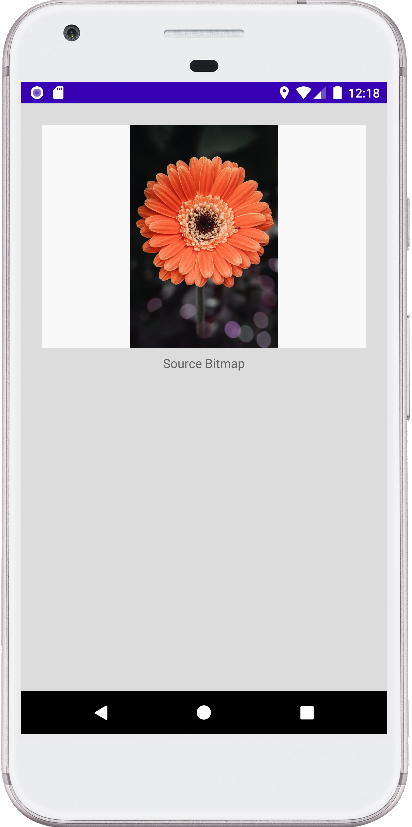
        imageView.setImageResource(R.drawable.flower7)

        // Initialize a new popup menu instance
        val popupMenu = PopupMenu(this,imageView)

        // Inflate the popup menu
        popupMenu.inflate(R.menu.popup_menu)

        // Set popup menu item click listener
        popupMenu.setOnMenuItemClickListener {
            when(it.itemId){
                R.id.center->{
                    imageView.scaleType = ImageView.ScaleType.CENTER
                    textView.text = "Image scale type: Center"
                    true
                }
                R.id.center_crop->{
                    imageView.scaleType = ImageView.ScaleType.CENTER_CROP
                    textView.text = "Image scale type: Center Crop"
                    true
                }
                R.id.center_inside->{
                    imageView.scaleType = ImageView.ScaleType.CENTER_INSIDE
                    textView.text = "Image scale type: Center Inside"
                    true
                }
                R.id.fit_center->{
                    imageView.scaleType = ImageView.ScaleType.FIT_CENTER
                    textView.text = "Image scale type: Fit Center"
                    true
                }
                R.id.fit_end->{
                    imageView.scaleType = ImageView.ScaleType.FIT_END
                    textView.text = "Image scale type: Fit End"
                    true
                }
                R.id.fit_start->{
                    imageView.scaleType = ImageView.ScaleType.FIT_START
                    textView.text = "Image scale type: Fit Start"
                    true
                }
                R.id.fit_xy->{
                    imageView.scaleType = ImageView.ScaleType.FIT_XY
                    textView.text = "Image scale type: Fit XY"
                    true
                }
                R.id.matrix->{
                    imageView.scaleType = ImageView.ScaleType.MATRIX
                    textView.text = "Image scale type: Matrix"
                    true
                }
                else-> false
            }
        }


        // Set a click listener for image view
        imageView.setOnClickListener{
            // Display the popup menu with icons
            try {
                val popup = PopupMenu::class.java.getDeclaredField("mPopup")
                popup.isAccessible = true
                val menu = popup.get(popupMenu)
                menu.javaClass
                    .getDeclaredMethod(
                        "setForceShowIcon", Boolean::class.java)
                    .invoke(menu, true)
            } catch (e: Exception){
                e.printStackTrace()
            } finally {
                popupMenu.show()
            }

            // Or simply show the popup menu without icons
            //popupMenu.show()
        }
    }
}
activity_main.xml
<?xml version="1.0" encoding="utf-8"?>
<androidx.constraintlayout.widget.ConstraintLayout
    xmlns:android="http://schemas.android.com/apk/res/android"
    xmlns:app="http://schemas.android.com/apk/res-auto"
    xmlns:tools="http://schemas.android.com/tools"
    android:layout_width="match_parent"
    android:layout_height="match_parent"
    android:id="@+id/rootLayout"
    android:background="#DCDCDC"
    android:padding="24dp">

    <ImageView
        android:id="@+id/imageView"
        android:layout_width="0dp"
        android:layout_height="250dp"
        android:background="#F8F8F8"
        app:layout_constraintEnd_toEndOf="parent"
        app:layout_constraintStart_toStartOf="parent"
        app:layout_constraintTop_toTopOf="parent" />

    <TextView
        android:id="@+id/textView"
        android:layout_width="wrap_content"
        android:layout_height="wrap_content"
        android:layout_marginTop="8dp"
        android:text="Source Bitmap"
        app:layout_constraintEnd_toEndOf="parent"
        app:layout_constraintStart_toStartOf="parent"
        app:layout_constraintTop_toBottomOf="@+id/imageView" />

</androidx.constraintlayout.widget.ConstraintLayout>
res/menu/popup_menu.xml
<?xml version="1.0" encoding="utf-8"?>
<menu xmlns:android="http://schemas.android.com/apk/res/android">
    <item
        android:id="@+id/center"
        android:title="Center"
        android:icon="@drawable/ic_action_image"
        />
    <item
        android:id="@+id/center_crop"
        android:title="Center Crop"
        android:icon="@drawable/ic_action_scale"
        />
    <item
        android:id="@+id/center_inside"
        android:title="Center Inside"
        android:icon="@drawable/ic_action_scale"
        />
    <item
        android:id="@+id/fit_center"
        android:title="Fit Center"
        android:icon="@drawable/ic_action_image"
        />
    <item
        android:id="@+id/fit_end"
        android:title="Fit End"
        android:icon="@drawable/ic_action_image"
        />
    <item
        android:id="@+id/fit_start"
        android:title="Fit Start"
        android:icon="@drawable/ic_action_image"
        />
    <item
        android:id="@+id/fit_xy"
        android:title="Fit XY"
        android:icon="@drawable/ic_action_scale"
        />
    <item
        android:id="@+id/matrix"
        android:title="Matrix"
        android:icon="@drawable/ic_action_scale"
        />
</menu>