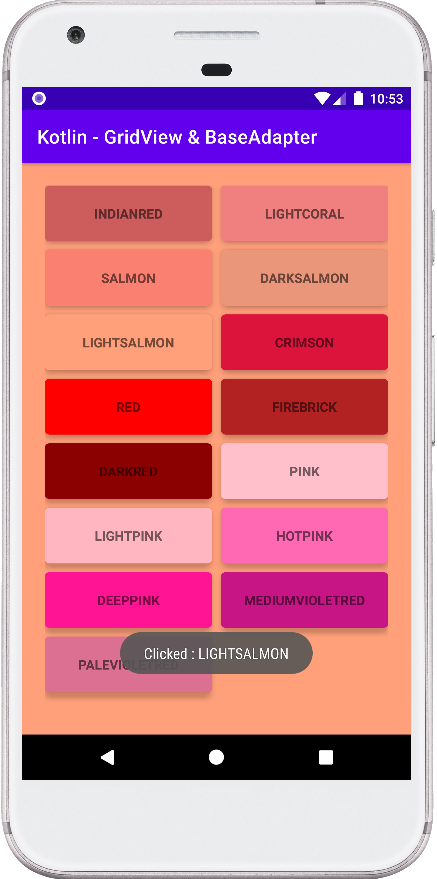
MainActivity.kt
package com.cfsuman.kotlintutorials

import android.os.Bundle
import android.widget.GridView
import androidx.appcompat.app.AppCompatActivity


class MainActivity : AppCompatActivity() {

    override fun onCreate(savedInstanceState: Bundle?) {
        super.onCreate(savedInstanceState)
        setContentView(R.layout.activity_main)

        // Get the widgets reference from XML layout
        val gridView = findViewById<GridView>(R.id.gridView)

        // Get an instance of base adapter
        val adapter = ColorBaseAdapter()

        // Set the grid view adapter
        gridView.adapter = adapter

        // Configure the grid view
        gridView.apply {
            numColumns = 2
            horizontalSpacing = 32
            verticalSpacing = 32
            stretchMode = GridView.STRETCH_COLUMN_WIDTH
        }
    }
}
activity_main.xml
<?xml version="1.0" encoding="utf-8"?>
<GridView
    xmlns:android="http://schemas.android.com/apk/res/android"
    android:id="@+id/gridView"
    android:layout_width="match_parent"
    android:layout_height="match_parent"
    android:padding="24dp"
    android:background="#DCDCDC"/>
ColorBaseAdapter.kt
package com.cfsuman.kotlintutorials

import android.app.Activity
import android.content.Context
import android.graphics.Color
import android.view.LayoutInflater
import android.view.View
import android.view.ViewGroup
import android.widget.BaseAdapter
import android.widget.TextView
import android.widget.Toast
import androidx.cardview.widget.CardView


class ColorBaseAdapter : BaseAdapter(){
    private val list = colors()

    override fun getView(position:Int, convertView: View?,
                         parent: ViewGroup?):View{
        // Inflate the custom view
        val inflater = parent?.context?.getSystemService(
            Context.LAYOUT_INFLATER_SERVICE) as LayoutInflater
        val view = inflater.inflate(R.layout.custom_view,null)

        // Get the custom view widgets reference
        val tvName = view.findViewById<TextView>(R.id.tvName)
        val card = view.findViewById<CardView>(R.id.cardView)

        // Display color name on text view
        tvName.text = list[position].first

        // Set background color for card view
        card.setCardBackgroundColor(list[position].second)

        // Set a click listener for card view
        card.setOnClickListener{
            // Show selected color in a toast message
            Toast.makeText(parent.context,
                "Clicked : ${list[position].first}",
                Toast.LENGTH_SHORT).show()

            // Get the activity reference from parent
            val activity  = parent.context as Activity

            // Get the activity root view
            val viewGroup = activity.findViewById<ViewGroup>(
                android.R.id.content).getChildAt(0)

            // Change the root layout background color
            viewGroup.setBackgroundColor(list[position].second)
        }

        // Finally, return the view
        return view
    }


    override fun getItem(position: Int): Any {
        return list[position]
    }


    override fun getItemId(position: Int): Long {
        return position.toLong()
    }


    // Count the items
    override fun getCount(): Int {
        return list.size
    }


    // Custom method to generate list of color name value pair
    private fun colors():List<Pair<String,Int>>{
        return listOf(
            Pair("INDIANRED", Color.parseColor("#CD5C5C")),
            Pair("LIGHTCORAL",Color.parseColor("#F08080")),
            Pair("SALMON",Color.parseColor("#FA8072")),
            Pair("DARKSALMON",Color.parseColor("#E9967A")),
            Pair("LIGHTSALMON",Color.parseColor("#FFA07A")),
            Pair("CRIMSON",Color.parseColor("#DC143C")),
            Pair("RED",Color.parseColor("#FF0000")),
            Pair("FIREBRICK",Color.parseColor("#B22222")),
            Pair("DARKRED",Color.parseColor("#8B0000")),
            Pair("PINK",Color.parseColor("#FFC0CB")),
            Pair("LIGHTPINK",Color.parseColor("#FFB6C1")),
            Pair("HOTPINK",Color.parseColor("#FF69B4")),
            Pair("DEEPPINK",Color.parseColor("#FF1493")),
            Pair("MEDIUMVIOLETRED",Color.parseColor("#C71585")),
            Pair("PALEVIOLETRED",Color.parseColor("#DB7093"))
        )
    }
}
custom_view.xml
<?xml version="1.0" encoding="utf-8"?>
<androidx.cardview.widget.CardView
    xmlns:android="http://schemas.android.com/apk/res/android"
    xmlns:app="http://schemas.android.com/apk/res-auto"
    android:id="@+id/cardView"
    android:layout_width="match_parent"
    android:layout_height="wrap_content"
    app:cardCornerRadius="5dp"
    app:cardElevation="5dp"
    app:cardMaxElevation="7dp"
    app:contentPadding="20dp"
    android:layout_margin="5dp">

    <TextView
        android:id="@+id/tvName"
        android:layout_width="wrap_content"
        android:layout_height="wrap_content"
        android:textStyle="bold"
        android:layout_gravity="center"/>

</androidx.cardview.widget.CardView>