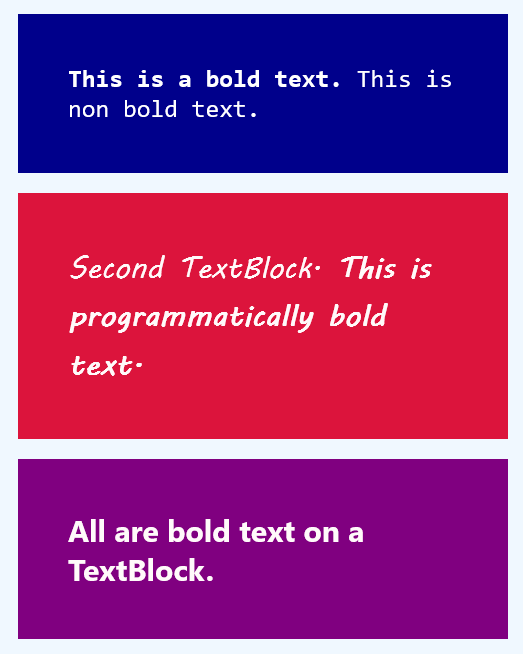
UWP - TextBlock Bold Text
The TextBlock is the primary control for displaying read-only text in
UWP apps. The UWP app developers can use it to display single-line or
multi-line text, inline hyperlinks, and text with formatting like bold,
italic, or underlined. The TextBlock is designed to display a single paragraph
and it does not support text indentation.
The following Universal Windows Platform application development tutorial demonstrates how we can bold the TextBlock text. Here we will display bold text in three TextBlock controls. That means we will render some or all text of those TextBlock texts in bold font weight.
For the first TextBlock control, we will bold some text using the XAML language. And for the second TextBlock control, we will bold all of its text programmatically.
For the first TextBlock control, we will use inline Run and Bold instances to bold some text. And for the second TextBlock control, we will create and apply the Run and Bold instances programmatically. In the third TextBlock, we will use the TextBlock class FontWeight property to make the TextBlock all text to bold font weight.
The Run class represents a discrete section of formatted or unformatted text. The UWP developers can use a Run instance in a TextBlock or RichTextBlock. The UWP app developers can even place multiple Run elements inside a Span. The UWP developers should typically use the Run element only when they want to format a discrete section of text within the TextBlock.
The Run class Text property gets or sets the text contents of the Run.
The Bold class provides an inline-level content element that causes content to render with a bold font weight.
The Bold class Inlines property gets an InlineCollection containing the top-level inline elements that include the contents of Span. This property is inherited from Span.
The TextBlock class Inlines property gets the collection of inline text elements within a TextBlock. This property value is an InlineCollectionwhich is a collection that holds all inline text elements from the TextBlock. The default value of this property is an empty collection.
The TextBlock class FontWeight property gets or sets the top-level font weight for the TextBlock. This property value is a FontWeight which is the requested font-weight, which is a FontWeight that is obtained from one of the FontWeights property values.
The default value is Normal. The FontWeight structure describes the density of a typeface, in terms of the lightness or heaviness of the strokes. Here we will set this property value to Bold to display bold text in a TextBlock control.
The following Universal Windows Platform application development tutorial demonstrates how we can bold the TextBlock text. Here we will display bold text in three TextBlock controls. That means we will render some or all text of those TextBlock texts in bold font weight.
For the first TextBlock control, we will bold some text using the XAML language. And for the second TextBlock control, we will bold all of its text programmatically.
For the first TextBlock control, we will use inline Run and Bold instances to bold some text. And for the second TextBlock control, we will create and apply the Run and Bold instances programmatically. In the third TextBlock, we will use the TextBlock class FontWeight property to make the TextBlock all text to bold font weight.
The Run class represents a discrete section of formatted or unformatted text. The UWP developers can use a Run instance in a TextBlock or RichTextBlock. The UWP app developers can even place multiple Run elements inside a Span. The UWP developers should typically use the Run element only when they want to format a discrete section of text within the TextBlock.
The Run class Text property gets or sets the text contents of the Run.
The Bold class provides an inline-level content element that causes content to render with a bold font weight.
The Bold class Inlines property gets an InlineCollection containing the top-level inline elements that include the contents of Span. This property is inherited from Span.
The TextBlock class Inlines property gets the collection of inline text elements within a TextBlock. This property value is an InlineCollectionwhich is a collection that holds all inline text elements from the TextBlock. The default value of this property is an empty collection.
The TextBlock class FontWeight property gets or sets the top-level font weight for the TextBlock. This property value is a FontWeight which is the requested font-weight, which is a FontWeight that is obtained from one of the FontWeights property values.
The default value is Normal. The FontWeight structure describes the density of a typeface, in terms of the lightness or heaviness of the strokes. Here we will set this property value to Bold to display bold text in a TextBlock control.
MainPage.xaml
<Page
    x:Class="UniversalAppTutorials.MainPage"
    xmlns="http://schemas.microsoft.com/winfx/2006/xaml/presentation"
    xmlns:x="http://schemas.microsoft.com/winfx/2006/xaml"
    xmlns:local="using:UniversalAppTutorials"
    xmlns:d="http://schemas.microsoft.com/expression/blend/2008"
    xmlns:mc="http://schemas.openxmlformats.org/markup-compatibility/2006"
    mc:Ignorable="d">
    <StackPanel
        x:Name="StackPanel1"
        Margin="50"
        Orientation="Vertical"
        Background="AliceBlue"
        Padding="50"
        >
        <Border Background="DarkBlue" Margin="10">
            <TextBlock
                x:Name="TextBlock1"
                Margin="50"
                TextWrapping="Wrap"
                FontSize="25"
                Foreground="White"
                FontFamily="Consolas"
                >
                <Bold>
                    <Run>
                        This is a bold text.
                    </Run>
                </Bold>
                <Run>
                    This is non bold text.
                </Run>
            </TextBlock>
        </Border>
        <Border Background="Crimson" Margin="10">
            <TextBlock
                x:Name="TextBlock2"
                Margin="50"
                FontSize="30"
                TextWrapping="Wrap"
                FontFamily="MV Boli"
                Text="Second TextBlock. "
                Foreground="Snow"
                />
        </Border>
        <Border Background="Purple" Margin="10">
            <TextBlock
                x:Name="TextBlock3"
                Margin="50"
                FontSize="30"
                TextWrapping="Wrap"
                Text="All are bold text on a TextBlock. "
                Foreground="Snow"
                FontWeight="Bold"
                />
        </Border>
    </StackPanel>
</Page>
MainPage.xaml.cs
using Windows.UI.Xaml.Controls;
using Windows.UI.Xaml.Documents;


namespace UniversalAppTutorials
{
    public sealed partial class MainPage : Page
    {
        public MainPage()
        {
            this.InitializeComponent();

            // Initialize a new Bold instance
            Bold bold = new Bold();

            // Initialize a new Run instance
            Run run = new Run();

            // Set the text for run
            run.Text = "This is programmatically bold text.";

            // Add the Run to Bold
            bold.Inlines.Add(run);

            // Finally, show the bold text on second text block
            TextBlock2.Inlines.Add(bold);
        }
    }
}