Convert a Stack to an Array
The Stack class represents a simple last-in-first-out non-generic collection of objects. The Stack capacity is the number of elements it can hold. When elements are added to a Stack, its capacity is automatically increased as required through reallocation. The Stack accepts null as a valid value and allows duplicate elements.
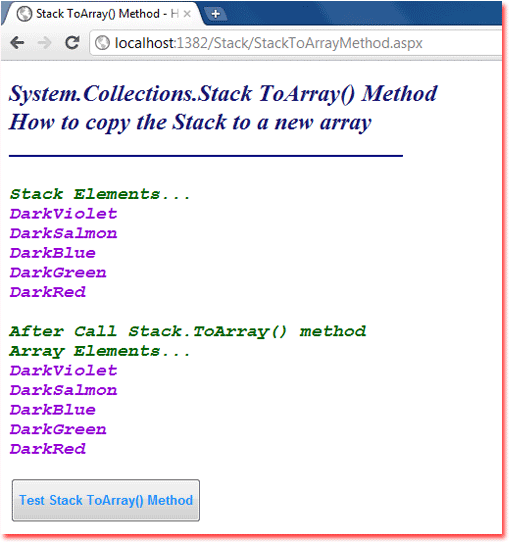
The following .net c# tutorial code demonstrates how we convert a Stack instance to an Array instance. That means we will copy a Stack to a new Array. In this .net c# tutorial code, we used the Stack class ToArray() method to create an Array instance from a Stack object.
The Stack class ToArray() method copy the Stack to a new array. This method returns a new array containing copies of the elements of the Stack. The elements are copied onto the array in last-in-first-out order. That is similar to the order of the elements returned by a succession of calls to Pop.
StackToArrayMethod.aspx
<%@ Page Language="C#" AutoEventWireup="true" %>

<!DOCTYPE html>
<script runat="server">
    protected void Button1_Click(object sender, System.EventArgs e)
    {
        Stack colors = new Stack();

        colors.Push("DarkRed");
        colors.Push("DarkGreen");
        colors.Push("DarkBlue");
        colors.Push("DarkSalmon");
        colors.Push("DarkViolet");

        Label1.Text = "Stack Elements... ";
        Label1.Text += "<font color=DarkViolet>";
        foreach (string color in colors)
        {
            Label1.Text += "<br />" + color;
        }
        Label1.Text += "</font>";

        var colorsArray = colors.ToArray();

        Label1.Text += "<br /><br />After Call Stack.ToArray() method";
        Label1.Text += "<br />Array Elements...";
        Label1.Text += "<font color=DarkViolet>";
        for (int i = 0; i < colorsArray.Length; i++)
        {
            Label1.Text += "<br />" + colorsArray[i].ToString();
        }
        Label1.Text += "</font>";
    }
</script>

<html xmlns="http://www.w3.org/1999/xhtml">
<head id="Head1" runat="server">
    <title>Stack ToArray() Method - How to copy the Stack to a new array</title>
</head>
<body>
    <form id="form1" runat="server">
    <div>
        <h2 style="color:MidnightBlue; font-style:italic;">
            System.Collections.Stack ToArray() Method
            <br /> How to copy the Stack to a new array
        </h2>
        <hr width="400" align="left" color="Navy" />
        <br />
        <asp:Label
             ID="Label1"
             runat="server"
             ForeColor="DarkGreen"
             Font-Size="Large"
             Font-Names="Courier New"
             Font-Italic="true"
             Font-Bold="true"
             >
        </asp:Label>
        <br /><br />
        <asp:Button
            ID="Button1"
            runat="server"
            OnClick="Button1_Click"
            Text="Test Stack ToArray() Method"
            Height="45"
            Font-Bold="true"
            ForeColor="DodgerBlue"
            />
    </div>
    </form>
</body>
</html>