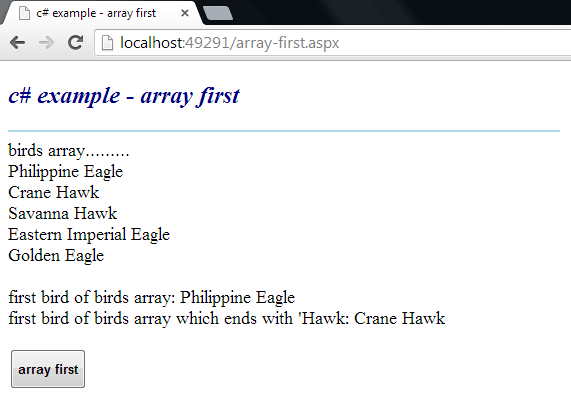
Get the first element of an Array
The Array class provides methods for creating, manipulating, searching,
and sorting arrays. The Array class is not part of the System.Collections
namespaces. However, it is still considered a collection because it is based
on the IList interface. An element is a value in an Array. The length of an
Array is the total number of elements it can contain. The Array has a fixed
capacity.
The following .net c# tutorial code demonstrates how we can get the first element of an Array instance. But there is no direct built-in method in the Array class to get the first element from an Array object. So, in this .net c# tutorial code we will use the Enumerable class First() method to get the first element of an Array instance.
The Enumerable First() method returns the first element of a sequence. The Enumerable First<TSource>(IEnumerable<TSource>) method overload returns the first element of a sequence. Here the source parameter is the IEnumerable<T> to return the first element of. This method returns the first element in the specified sequence. It throws ArgumentNullException if the source is null and also throws InvalidOperationException if the source sequence is empty.
The Enumerable First<TSource>(IEnumerable<TSource>, Func<TSource, Boolean>) method overload returns the first element in a sequence that satisfies a specified condition. The First(source, predicate) method’s source parameter is an IEnumerable<T> to return an element from. And the predicate parameter is a function to test each element for a condition. So using this method overload .net developers can get the first element of an Array instance that satisfies the provided condition.
The Enumerable First(source, predicate) method overload returns the first element in the sequence that passes the test in the specified predicate function. It throws ArgumentNullException if the source or predicate is null. It also throws InvalidOperationExceptionif no element satisfies the condition in the predicate or the source sequence is empty.
The following .net c# tutorial code demonstrates how we can get the first element of an Array instance. But there is no direct built-in method in the Array class to get the first element from an Array object. So, in this .net c# tutorial code we will use the Enumerable class First() method to get the first element of an Array instance.
The Enumerable First() method returns the first element of a sequence. The Enumerable First<TSource>(IEnumerable<TSource>) method overload returns the first element of a sequence. Here the source parameter is the IEnumerable<T> to return the first element of. This method returns the first element in the specified sequence. It throws ArgumentNullException if the source is null and also throws InvalidOperationException if the source sequence is empty.
The Enumerable First<TSource>(IEnumerable<TSource>, Func<TSource, Boolean>) method overload returns the first element in a sequence that satisfies a specified condition. The First(source, predicate) method’s source parameter is an IEnumerable<T> to return an element from. And the predicate parameter is a function to test each element for a condition. So using this method overload .net developers can get the first element of an Array instance that satisfies the provided condition.
The Enumerable First(source, predicate) method overload returns the first element in the sequence that passes the test in the specified predicate function. It throws ArgumentNullException if the source or predicate is null. It also throws InvalidOperationExceptionif no element satisfies the condition in the predicate or the source sequence is empty.
array-first.aspx
<%@ Page Language="C#" AutoEventWireup="true"%>

<!DOCTYPE html>
<script runat="server">
    protected void Button1_Click(object sender, System.EventArgs e)
    {
        string[] birds = new string[]
        {
            "Philippine Eagle",
            "Crane Hawk",
            "Savanna Hawk",
            "Eastern Imperial Eagle",
            "Golden Eagle"
        };

        Label1.Text = "birds array.........<br />";
        foreach(string s in birds)
        {
            Label1.Text += s + "<br />";
        }

        string firstbird = birds.First();
        string firstHawk = birds.First(x => x.EndsWith("Hawk"));

        Label1.Text += "<br />first bird of birds array: " + firstbird;
        Label1.Text += "<br />first bird of birds array which ends with 'Hawk: " + firstHawk;
    }
</script>

<html xmlns="http://www.w3.org/1999/xhtml">
<head id="Head1" runat="server">
    <title>c# example - array first</title>
</head>
<body>
    <form id="form1" runat="server">
    <div>
        <h2 style="color:DarkBlue; font-style:italic;">
            c# example - array first
        </h2>
        <hr width="550" align="left" color="LightBlue" />
        <asp:Label
            ID="Label1"
            runat="server"
            Font-Size="Large"
            >
        </asp:Label>
        <br /><br />
        <asp:Button
            ID="Button1"
            runat="server"
            Text="array first"
            OnClick="Button1_Click"
            Height="40"
            Font-Bold="true"
            />
    </div>
    </form>
</body>
</html>