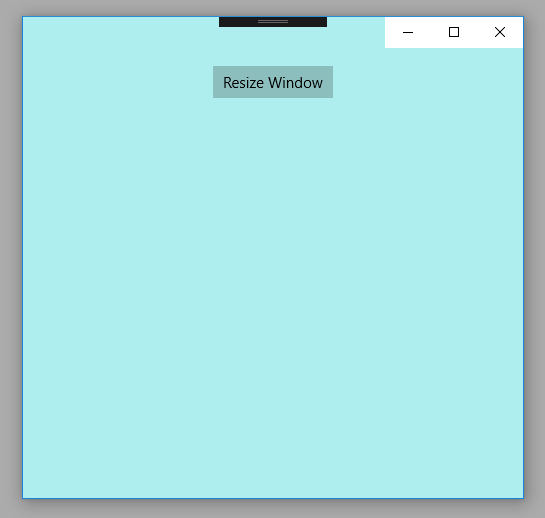
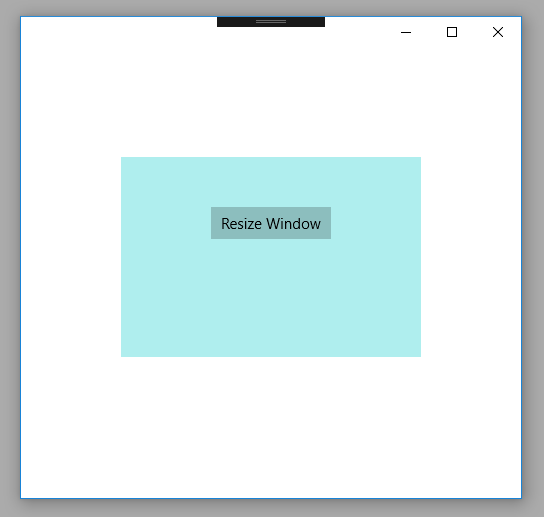
UWP - Resize app window at runtime
The following Universal Windows Platform application development
tutorial demonstrates how we can resize an app window during runtime.
In this UWP tutorial, we will call the ApplicationView class GetForCurrentView() method to get the active application view instance. Then we will call TryResizeView() method to change the app window size during runtime.
The ApplicationView class represents the active application view and associated states and behaviors.
The ApplicationView class GetForCurrentView() method gets the view state and behavior settings of the active application. This method returns an ApplicationView instance that can be used to get and set app display properties.
The ApplicationView class TryResizeView(Size) method attempts to change the size of the view to the specified size in effective pixels. The TryResizeView(Size value) method has a parameter names value. The value parameter is Size which is the new size of the view in effective pixels. This method returns a Boolean. It returns true if the view is resized to the requested size otherwise it returns false.
So finally, the UWP developers can resize an app window during runtime using the ApplicationView TryResizeSize() method for the specified window. The resize request affects only the view it was requested on. Resizing one view does not affect the size of any other views.
In this UWP tutorial, we will call the ApplicationView class GetForCurrentView() method to get the active application view instance. Then we will call TryResizeView() method to change the app window size during runtime.
The ApplicationView class represents the active application view and associated states and behaviors.
The ApplicationView class GetForCurrentView() method gets the view state and behavior settings of the active application. This method returns an ApplicationView instance that can be used to get and set app display properties.
The ApplicationView class TryResizeView(Size) method attempts to change the size of the view to the specified size in effective pixels. The TryResizeView(Size value) method has a parameter names value. The value parameter is Size which is the new size of the view in effective pixels. This method returns a Boolean. It returns true if the view is resized to the requested size otherwise it returns false.
So finally, the UWP developers can resize an app window during runtime using the ApplicationView TryResizeSize() method for the specified window. The resize request affects only the view it was requested on. Resizing one view does not affect the size of any other views.
MainPage.xaml
<Page
    x:Class="UniversalAppTutorials.MainPage"
    xmlns="http://schemas.microsoft.com/winfx/2006/xaml/presentation"
    xmlns:x="http://schemas.microsoft.com/winfx/2006/xaml"
    xmlns:local="using:UniversalAppTutorials"
    xmlns:d="http://schemas.microsoft.com/expression/blend/2008"
    xmlns:mc="http://schemas.openxmlformats.org/markup-compatibility/2006"
    mc:Ignorable="d"
    >
    <StackPanel Padding="50" Orientation="Vertical" Background="PaleTurquoise">
        <Button
            x:Name="Button1"
            Content="Resize Window"
            VerticalAlignment="Center"
            HorizontalAlignment="Center"
            Click="Button1_Click"
            />
    </StackPanel>
</Page>
MainPage.xaml.cs
using Windows.UI.Xaml.Controls;
using Windows.UI.ViewManagement;
using Windows.Foundation;
using Windows.UI.Xaml;


namespace UniversalAppTutorials
{
    public sealed partial class MainPage : Page
    {
        public MainPage()
        {
            this.InitializeComponent();
        }

        /*
            ApplicationView
                Represents the active application view and
                associated states and behaviors.

            GetForCurrentView
                Gets the view state and behavior settings of the active application.
                Return an ApplicationView instance that can be used to get and set app display properties.

            TryResizeView
                Attempts to change the size of the view to the specified size in effective pixels.
                Return true if the view is resized to the requested size; otherwise, false.
        */

        private void Button1_Click(object sender, RoutedEventArgs e) {
            // Try to resize the app window during runtime
            ApplicationView.GetForCurrentView().TryResizeView(
                new Size(Width = 300, Height=200)
                );
        }
    }
}