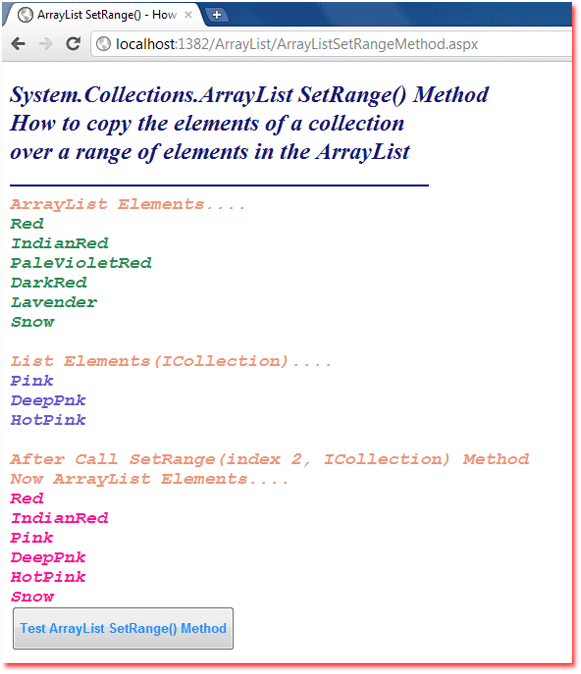
Copy the elements of a collection over a range of elements in an
ArrayList
The ArrayList class implements the IList interface using an array whose
size is dynamically increased as required. It is designed to hold
heterogeneous collections of objects. ArrayList is not guaranteed to be
sorted. The ArrayList capacity is the number of elements it can hold. Its
capacity is automatically increased while adding elements. ArrayList elements
can be accessed by index and it is zero-based. The ArrayList accepts null as a
valid value and also allows duplicate elements.
The following .net c# tutorial code demonstrates how we can copy the elements of a collection over a range of elements in an ArrayList instance. Here we will use the ArrayList class SetRange() method to copy elements over a range of elements in the ArrayList object.
The ArrayList SetRange(Int32, ICollection) method copies the elements of a collection over a range of elements in the ArrayList. The order of the elements in the ICollection is preserved in the ArrayList. The ArrayList SetRange(int index, System.Collections.ICollection c) method has two parameters.
The index parameter is the zero-based ArrayList index at which to start copying the elements of c. And the c parameter is the ICollection whose elements to copy to the ArrayList. The collection itself cannot be null, but it can contain elements that are null.
The ArrayList SetRange(Int32, ICollection) method throws ArgumentOutOfRangeException if the index is less than zero or the index plus the number of elements in c is greater than Count. It throws ArgumentNullException if the c is null. The method also throws NotSupportedException if the ArrayList is read-only.
The following .net c# tutorial code demonstrates how we can copy the elements of a collection over a range of elements in an ArrayList instance. Here we will use the ArrayList class SetRange() method to copy elements over a range of elements in the ArrayList object.
The ArrayList SetRange(Int32, ICollection) method copies the elements of a collection over a range of elements in the ArrayList. The order of the elements in the ICollection is preserved in the ArrayList. The ArrayList SetRange(int index, System.Collections.ICollection c) method has two parameters.
The index parameter is the zero-based ArrayList index at which to start copying the elements of c. And the c parameter is the ICollection whose elements to copy to the ArrayList. The collection itself cannot be null, but it can contain elements that are null.
The ArrayList SetRange(Int32, ICollection) method throws ArgumentOutOfRangeException if the index is less than zero or the index plus the number of elements in c is greater than Count. It throws ArgumentNullException if the c is null. The method also throws NotSupportedException if the ArrayList is read-only.
ArrayListSetRangeMethod.aspx
<%@ Page Language="C#" AutoEventWireup="true" %>

<!DOCTYPE html>

<script runat="server">
    protected void Button1_Click(object sender, System.EventArgs e)
    {
        ArrayList colors = new ArrayList() { "Red", "IndianRed", "PaleVioletRed", "DarkRed", "Lavender","Snow" };

        Label1.Text = "ArrayList Elements....";
        Label1.Text += "<font color=SeaGreen>";
        foreach (string color in colors)
        {
            Label1.Text += "<br />" + color;
        }
        Label1.Text += "</font>";

        List<string> pinkColors = new List<string>() {"Pink","DeepPnk","HotPink" };
        colors.SetRange(2,pinkColors);

        Label1.Text += "<br /><br />List Elements(ICollection)....";
        Label1.Text += "<font color=SlateBlue>";
        foreach (string color in pinkColors)
        {
            Label1.Text += "<br />" + color;
        }
        Label1.Text += "</font>";

        Label1.Text += "<br /><br />After Call SetRange(index 2, ICollection) Method";
        Label1.Text += "<br />Now ArrayList Elements....";
        Label1.Text += "<font color=DeepPink>";
        foreach (string color in colors)
        {
            Label1.Text += "<br />" + color;
        }
        Label1.Text += "</font>";
    }
</script>

<html xmlns="http://www.w3.org/1999/xhtml">
<head id="Head1" runat="server">
    <title>ArrayList SetRange() - How to copy the elements of a collection over a range of elements in the ArrayList</title>
</head>
<body>
    <form id="form1" runat="server">
    <div>
        <h2 style="color:MidnightBlue; font-style:italic;">
            System.Collections.ArrayList SetRange() Method
            <br /> How to copy the elements of a collection
            <br /> over a range of elements in the ArrayList
        </h2>
        <hr width="425" align="left" color="Navy" />
        <asp:Label
             ID="Label1"
             runat="server"
             ForeColor="DarkSalmon"
             Font-Size="Large"
             Font-Names="Courier New"
             Font-Italic="true"
             Font-Bold="true"
             >
        </asp:Label>
        <br />
        <asp:Button
            ID="Button1"
            runat="server"
            OnClick="Button1_Click"
            Text="Test ArrayList SetRange() Method"
            Height="45"
            Font-Bold="true"
            ForeColor="DodgerBlue"
            />
    </div>
    </form>
</body>
</html>