Add list item to RadioButtonList programmatically
RadioButtonList is an ASP.NET list web server control that allows us to
render a single selection radio button group in the web browser.
RadioButtonList control contains an item collection that holds all ListItem
objects. We can populate a RadioButtonList control statically by declarative
syntax. We also can populate a RadioButtonList control dynamically by data
binding with a data source object.
RadioButtonList server control has built-in properties and methods to customize it. We can change the default look and feel of a RadioButtonList control. Even we can programmatically add or remove items from its items collection at run time.
Each ListItem object has three possible properties those are Text, Value, and Selected. We can create a ListItem object programmatically. We also can add this ListItem object to RadioButtonList control's Items collection programmatically. Items collection's Add(ListItem) method allows us to programmatically add a ListItem object to its collection.
Add method requires an argument that accepts a ListItem object. After adding a ListItem object to the items collection the RadioButtonList control displays this item in its radio button list.
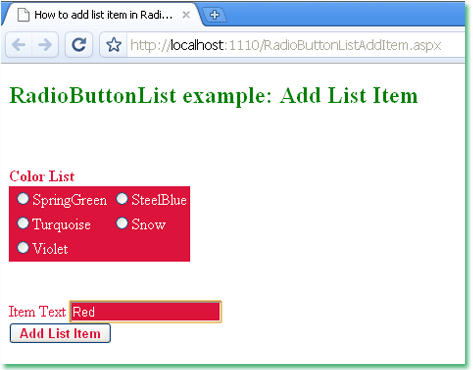
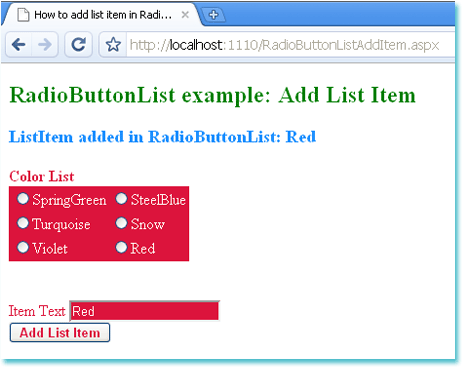
The following ASP.NET C# example code demonstrates to us how can we add item in RadioButtonList server control programmatically at run time.
RadioButtonList server control has built-in properties and methods to customize it. We can change the default look and feel of a RadioButtonList control. Even we can programmatically add or remove items from its items collection at run time.
Each ListItem object has three possible properties those are Text, Value, and Selected. We can create a ListItem object programmatically. We also can add this ListItem object to RadioButtonList control's Items collection programmatically. Items collection's Add(ListItem) method allows us to programmatically add a ListItem object to its collection.
Add method requires an argument that accepts a ListItem object. After adding a ListItem object to the items collection the RadioButtonList control displays this item in its radio button list.
The following ASP.NET C# example code demonstrates to us how can we add item in RadioButtonList server control programmatically at run time.
RadioButtonListAddItem.aspx
<%@ Page Language="C#" %>

<!DOCTYPE html>

<script runat="server">
    protected void Button1_Click(object sender, System.EventArgs e)
    {
        ListItem li = new ListItem();
        li.Text = TextBox1.Text.ToString();
        RadioButtonList1.Items.Add(li);
        Label1.Text = "ListItem added in RadioButtonList: " + li.Text;
    }
</script>

<html xmlns="http://www.w3.org/1999/xhtml">
<head id="Head1" runat="server">
    <title>How to add list item in RadioButtonList programmatically</title>
</head>
<body>
    <form id="form1" runat="server">
    <div>
        <h2 style="color:Green">RadioButtonList example: Add List Item</h2>
        <asp:Label
             ID="Label1"
             runat="server"
             Font-Bold="true"
             ForeColor="DodgerBlue"
             Font-Size="Large"
             >
        </asp:Label>
        <br /><br />
        <asp:Label
             ID="Label2"
             runat="server"
             Text="Color List"
             Font-Bold="true"
             ForeColor="Crimson"
             >
        </asp:Label>
        <br />
        <asp:RadioButtonList
             ID="RadioButtonList1"
             runat="server"
             BackColor="Crimson"
             ForeColor="FloralWhite"
             RepeatColumns="2"
             >
             <asp:ListItem>SpringGreen</asp:ListItem>
             <asp:ListItem>Turquoise</asp:ListItem>
             <asp:ListItem>Violet</asp:ListItem>
             <asp:ListItem>SteelBlue</asp:ListItem>
             <asp:ListItem>Snow</asp:ListItem>
        </asp:RadioButtonList>
        <br /><br />
        <asp:Label
             ID="Label3"
             runat="server"
             ForeColor="Crimson"
             Text="Item Text"
             >
        </asp:Label>
        <asp:TextBox
             ID="TextBox1"
             runat="server"
             BackColor="Crimson"
             ForeColor="Snow"
             >
        </asp:TextBox>
        <br />
        <asp:Button
             ID="Button1"
             runat="server"
             Text="Add List Item"
             Font-Bold="true"
             ForeColor="Crimson"
             OnClick="Button1_Click"
             />
    </div>
    </form>
</body>
</html>